Quick answer: Use SVG when a cutting machine needs clean, scalable cut paths or separate color layers. Use PNG when the design depends on detailed color, shading, texture or a transparent background for Print Then Cut, stickers or sublimation. When a bundle includes both, start with the format that matches the job instead of converting one automatically.
SVG and PNG at a glance
| Project | Usually choose | Why |
|---|---|---|
| Vinyl, HTV or paper cutting | SVG | Vector paths become cut lines and can preserve separate layers. |
| Print Then Cut stickers | PNG | A transparent background and full-color artwork can remain in one raster image. |
| Sublimation | PNG | PNG preserves detailed color, gradients and textured artwork at a fixed resolution. |
| Large single-color decal | SVG | The artwork can be resized without pixel edges becoming visible. |
| Watercolor or realistic floral art | PNG | Raster pixels preserve soft shading and photographic detail that simple cut paths cannot. |
| Layered multi-color cut design | SVG | Well-built vector files can import as separate color layers for cutting. |
What is an SVG file?
SVG stands for Scalable Vector Graphics. Instead of storing a fixed grid of colored pixels, an SVG describes shapes and paths. That makes it the practical choice for cut vinyl, heat-transfer vinyl, cardstock, stencils and other projects where a blade follows an outline.
Cricut explains that vector uploads such as SVG and DXF are treated differently from basic raster images: vector artwork is imported as cut lines, and designs built with layers can be separated into layers. This is why an SVG is normally the first file to try for a clean cut project.
SVG is not automatically the best format for every image. Photographs, watercolor textures, soft shadows and complex gradients do not translate into simple cut paths. Cricut also notes that pattern fills, linked images and some unsupported SVG features can trigger upload errors. For that kind of artwork, a high-resolution PNG is often the more dependable choice.
What is a PNG file?
PNG is a raster format: it stores a fixed number of pixels. A PNG can include a transparent background, crisp full-color artwork, texture and subtle shading. It is widely used for printable stickers, invitations, digital composition, product mockups, Print Then Cut and sublimation.
The tradeoff is resolution. Enlarging a small PNG beyond its intended dimensions can make edges look soft or pixelated. Check the pixel dimensions and intended print size before committing materials. For print work, begin with the original downloaded file rather than a screenshot or social-media preview, because previews are often smaller and compressed.
Which file should you upload to Cricut Design Space?
Choose SVG for cut-only projects
Use SVG for vinyl lettering, simple layered graphics, cardstock decorations, stencil shapes and large decals. After upload, inspect the Layers panel before clicking Make. Confirm that the color groups and cut paths match the project you intend to assemble.
Choose PNG for Print Then Cut
Use PNG for stickers, labels and full-color printed pieces. A transparent PNG removes the rectangular white background around the design, although you should still inspect the preview for stray pixels. Print Then Cut requires both a compatible printer workflow and machine calibration; the image file does not contain material or pressure settings.
Choose PNG for sublimation
Sublimation is a print-and-press process, so detailed raster artwork is usually more useful than a cut-path file. Size the design for the blank, mirror it when your printer or transfer workflow requires that, and follow the ink, paper, blank and heat-press instructions supplied by their manufacturers. The digital artwork does not determine the correct time, temperature or pressure.
What changes in Silhouette Studio?
Silhouette Studio edition matters. Silhouette's official file-type documentation says the free Basic Edition can import PNG and other raster images for tracing, while direct SVG opening requires Designer Edition or above. If an SVG will not open, first check the software edition before assuming the download is damaged.
Tracing a PNG and opening an SVG are not identical workflows. Tracing asks the software to infer cut edges from pixels, so very detailed art may create more nodes or less predictable outlines. An SVG already contains vector paths, which is usually cleaner for designs intended specifically for cutting.
A practical file-selection workflow
- Name the process: cutting, printing, Print Then Cut, sublimation or digital design.
- Inspect the artwork: flat shapes and clear outlines favor SVG; texture and shading favor PNG.
- Check software support: confirm the app and edition can open the included format.
- Use the original download: unzip the purchased folder and avoid screenshots or listing previews.
- Test small: make a paper or scrap-material test before using an expensive blank.
- Read the listing license: personal and commercial-use permissions vary by product.
Common file problems and what they mean
The PNG has a white box
The file may not have transparency, or the viewer may display transparency as white. Open it in the target design software and inspect the canvas. If the listing promises a transparent PNG but the original file truly contains a background, contact the seller with the product name and file details.
The PNG looks blurry
Confirm that you imported the original file and did not enlarge it far beyond its pixel dimensions. Also check the application's preview zoom: an on-screen preview may look soft even when the exported print file is adequate. A small test print is more reliable than judging a heavily zoomed preview.
The SVG imports as one layer
Some designs are intentionally single-layer, while others may be grouped or compounded. Review the listing description for the promised structure. Ungrouping can expose separate objects, but it cannot create missing layers from a flattened design.
The SVG will not upload
Confirm the file is fully extracted from its ZIP folder, the software supports SVG, and the artwork does not rely on unsupported effects. For highly textured or gradient artwork, use the supplied PNG when available.
Browse designs by the way you plan to make them
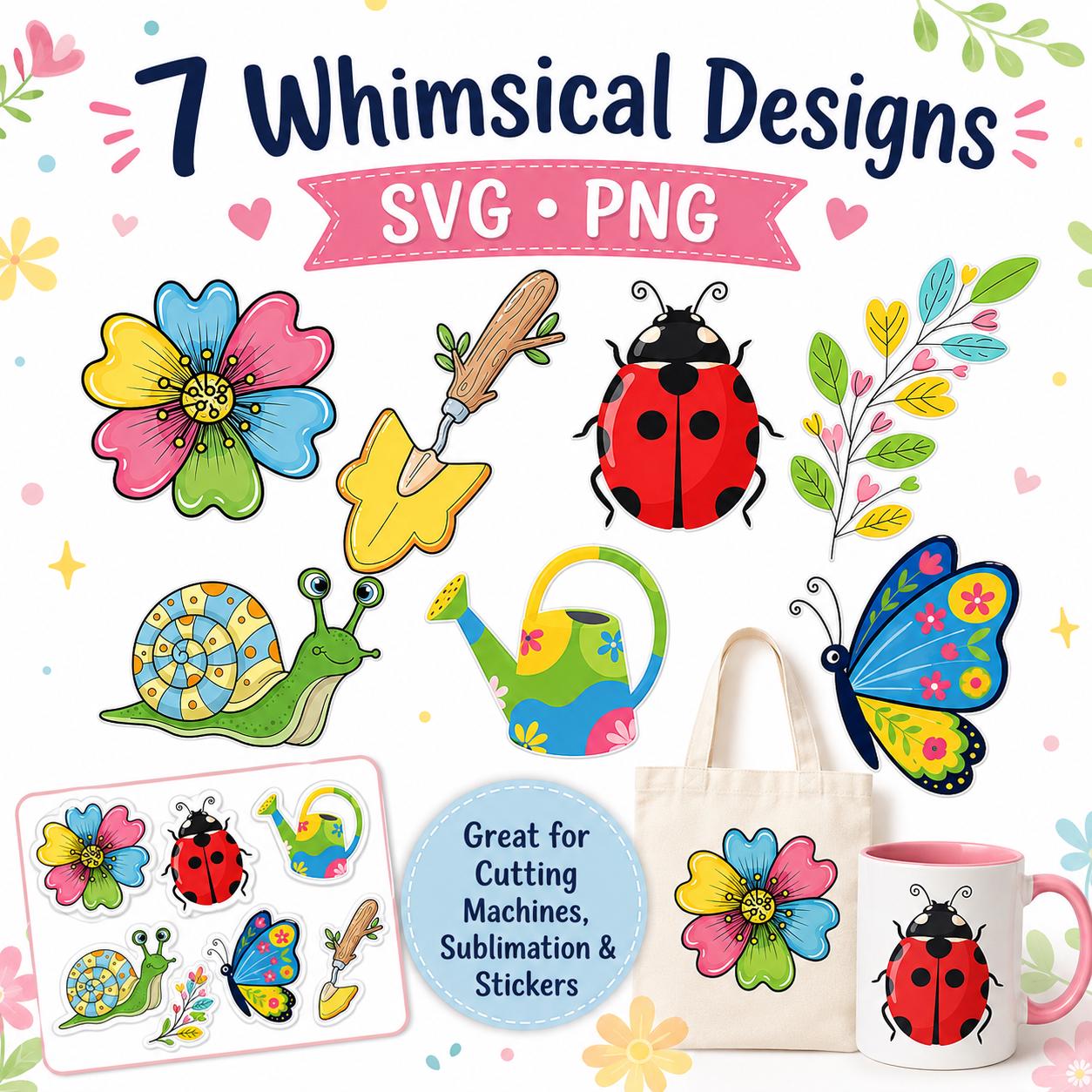
For colorful stickers and spring projects, see the Whimsical Garden SVG and PNG bundle. For layered patriotic cut projects, compare the USA 250 patriotic eagle SVG and PNG bundle with the wider USA 250th anniversary collection. For realistic florals and invitations, browse the magnolia art collection, where the product page identifies whether each design includes PNG, SVG or a physical canvas.
Sources and update note
This guide was updated on August 17, 2026. Software behavior and edition requirements can change, so confirm current compatibility in the Cricut image-upload guide and Silhouette Studio file-type guide. Product-specific formats and permissions are stated on each listing page.